

Casigood on Mobile: Web App for iPhone and Android
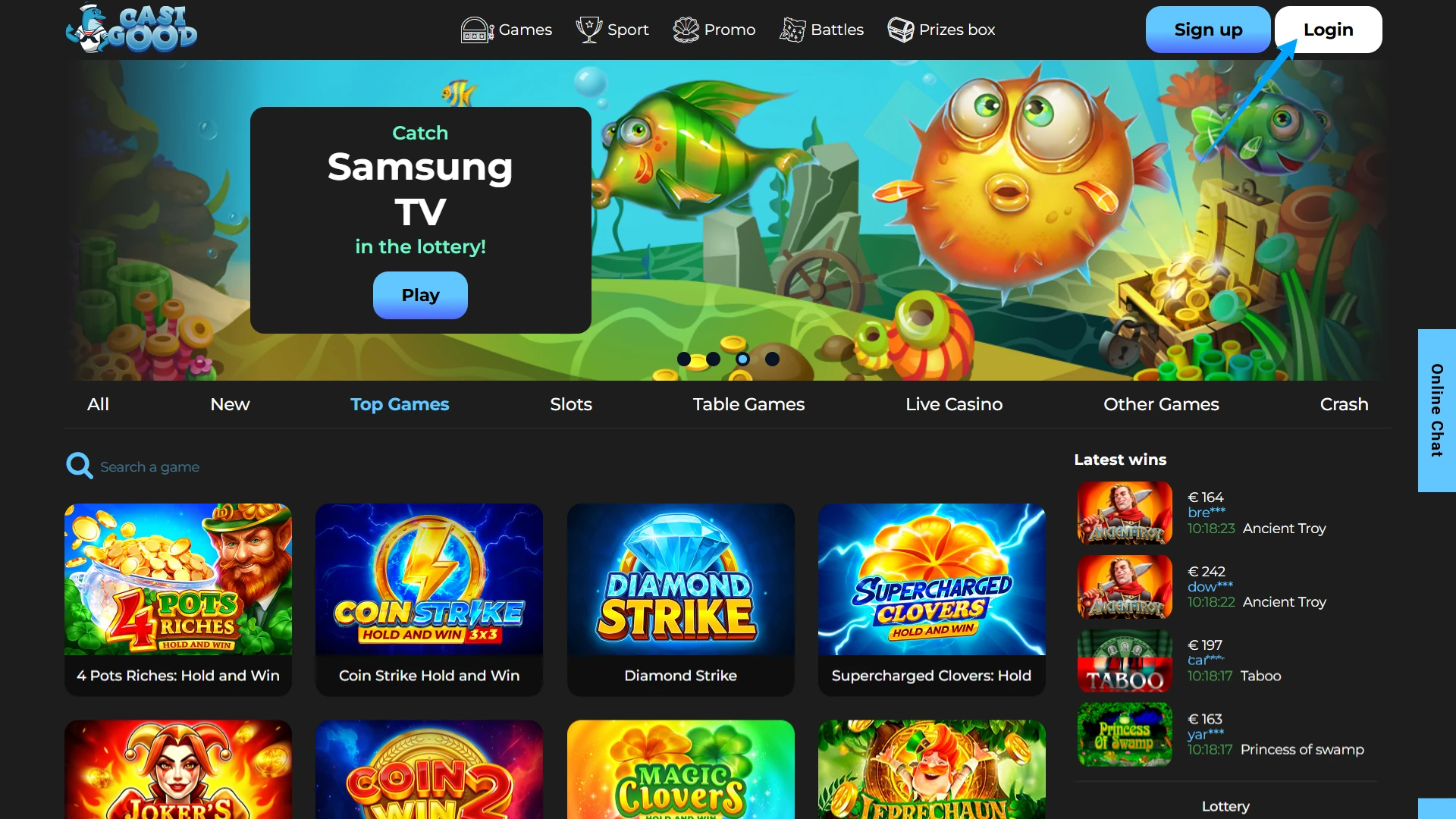
There is no Casigood app in the stores, and you do not need one. Casigood Casino runs in your mobile browser: the casino, live tables, the sportsbook and the Cashbox all work on your phone, with nothing to download. Pin the site to your home screen to open it like an app. Add the shortcut and start playing. 18+.
475% welcome package

| Platforms: | iPhone, iPad and Android browsers |
| Type: | Web app (PWA) |
| Download size: | None |
| Price: | Free |
Is There a Casigood App? Main Facts
No. Casigood has no native iOS or Android app, and no App Store, Google Play or APK links. The site is a web app (PWA) that opens from a home screen icon, without the address bar. The operator confirms: "All games work in a browser mode." Any "Casigood APK" elsewhere is not official, so do not install it. Key facts:
| Field | Details |
|---|---|
| App type | Web app (PWA) |
| Available on App Store / Google Play | No |
| APK file | No |
| How to install | Home screen shortcut |
| Supported devices | iPhone, iPad, Android |
| Browsers | Safari, Chrome |
| Cost | Free |
| Account | Same as on desktop |
| Sections available | Games, Sport, Promo, Battles, Prizes box |
| Languages | English, Russian |
| Currency | EUR |
| Age limit | 18+ |
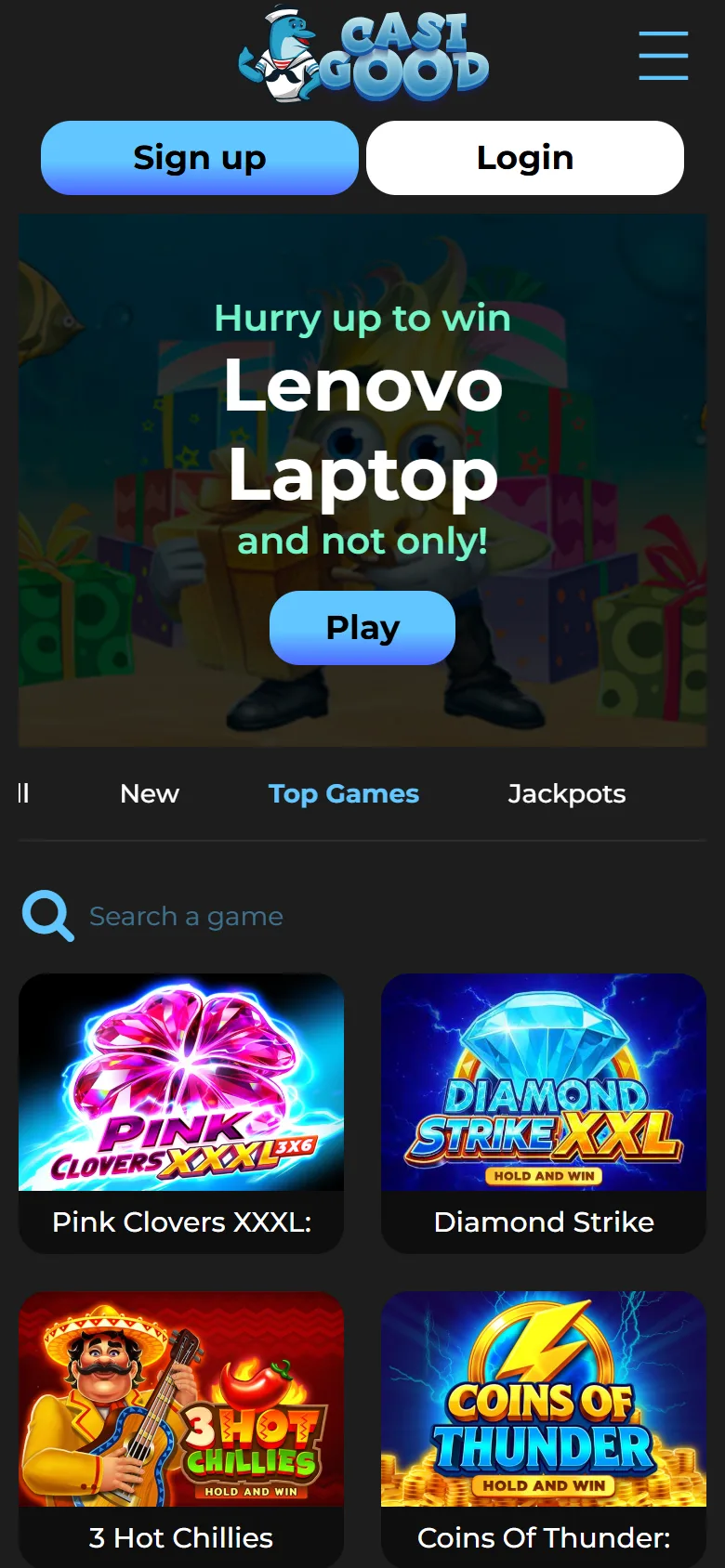
How to Add Casigood to Your Home Screen
The shortcut takes about a minute, with no downloads and no install permissions. Below are separate steps for iPhone and for Android.
iPhone and iPad: Add Casigood via Safari
Use Safari. The steps are identical on iPad.
1
Open the site in Safari
Go to the Casigood site in Safari.
2
Tap Share
Tap the "Share" button, the square with an arrow pointing up, on the bottom bar.
3
Choose Add to Home Screen
Scroll down the menu and select "Add to Home Screen".
4
Tap Add
Rename the shortcut if you like, then tap "Add".
5
Open Casigood from the icon
The Casigood icon appears on your screen, and the site opens like an app.
Android: Add Casigood via Chrome
On Android, use Google Chrome. You do not need an APK or the "unknown sources" setting.
1
Open the site in Chrome
Go to the Casigood site in Google Chrome.
2
Open the menu
Tap the three-dot menu in the top right corner.
3
Choose Add to Home screen
Select "Add to Home screen" or "Install app", depending on your Chrome version.
4
Confirm
Tap "Add" to confirm.
5
Find the icon
The Casigood icon appears on your home screen.
What You Can Do on the Casigood Mobile Site
The mobile version mirrors the desktop site: one account, one balance and the same Games, Sport, Promo, Battles and Prizes box menu.
Casino Games and Live Tables
The whole lobby is open on your phone: New, Top Games, Jackpots, Slots, Table Games, Live Casino, Other Games and Crash, with search by title and a provider filter. Games can be tried in demo mode without registering. Popular picks include Pink Clovers XXXL: Hold and Win from Playson, Live Roulette from Iconic21 and Chicken Road from InOut.
Sports Betting on Your Phone
The sportsbook keeps its Lobby and Live tabs, with football, tennis, basketball, cricket, eSports and ice hockey among the popular sports, plus event search. Selections go to the Betslip, placed bets to My Bets. You can find a slip by its Booking code and adjust Odds Settings. Bet types include Single, Multiple and System, and the Betting Rules also list Cash Out.
Bonuses and Cashbox on Mobile
The 475% welcome package on your first three deposits and the 200% Sport Bonus work from a phone on the same terms as on desktop. Activate the bonus before you top up, or it will not be credited. The Cashbox opens after you sign in, with Visa, Mastercard and Crypto among the options. Track your payouts in Withdrawal history.
Top Games on Mobile
The same Top Games list as on desktop, sized for a phone screen.

Burning Hot

Hot Choice Deluxe

Hot Choice
Coin Up: Lightning

Thunder Coins XXL

Coin UP

Diamond Strike
Device and Browser Requirements
There are hardly any special requirements: a modern smartphone or tablet, an up-to-date Safari or Chrome and a stable connection. Here is what each system needs:
| Requirement | iPhone / iPad | Android |
|---|---|---|
| Recommended browser | Safari | Google Chrome |
| Internet connection | Wi-Fi or mobile data | Wi-Fi or mobile data |
| Free storage | Not needed | Not needed |
| Installation file | None | None |
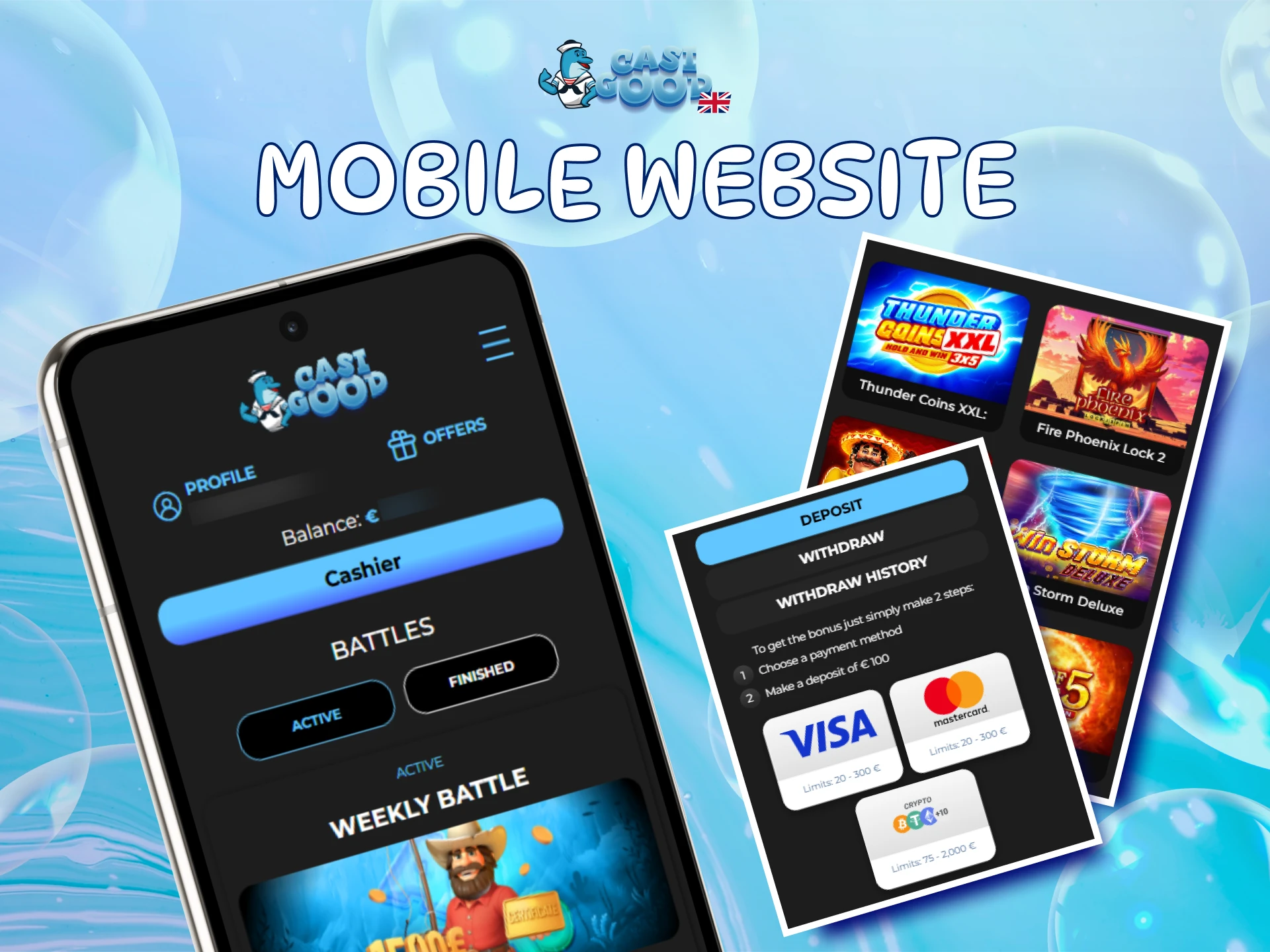
Home Screen Shortcut vs Native App: Pros and Cons
Here is an honest comparison of the shortcut with a classic store app.
Pros
- Nothing to download or update by hand
- Takes up no storage on your phone
- No install permissions needed
- Works the same on iPhone and Android
- Always opens the current version of the site
Cons
- Needs an internet connection
- No listing in the App Store or Google Play
- Some features depend on your browser
Sign Up and Log In from Your Phone
Your account works on a phone exactly as on a computer, with one profile for every device.
Creating an Account on Mobile
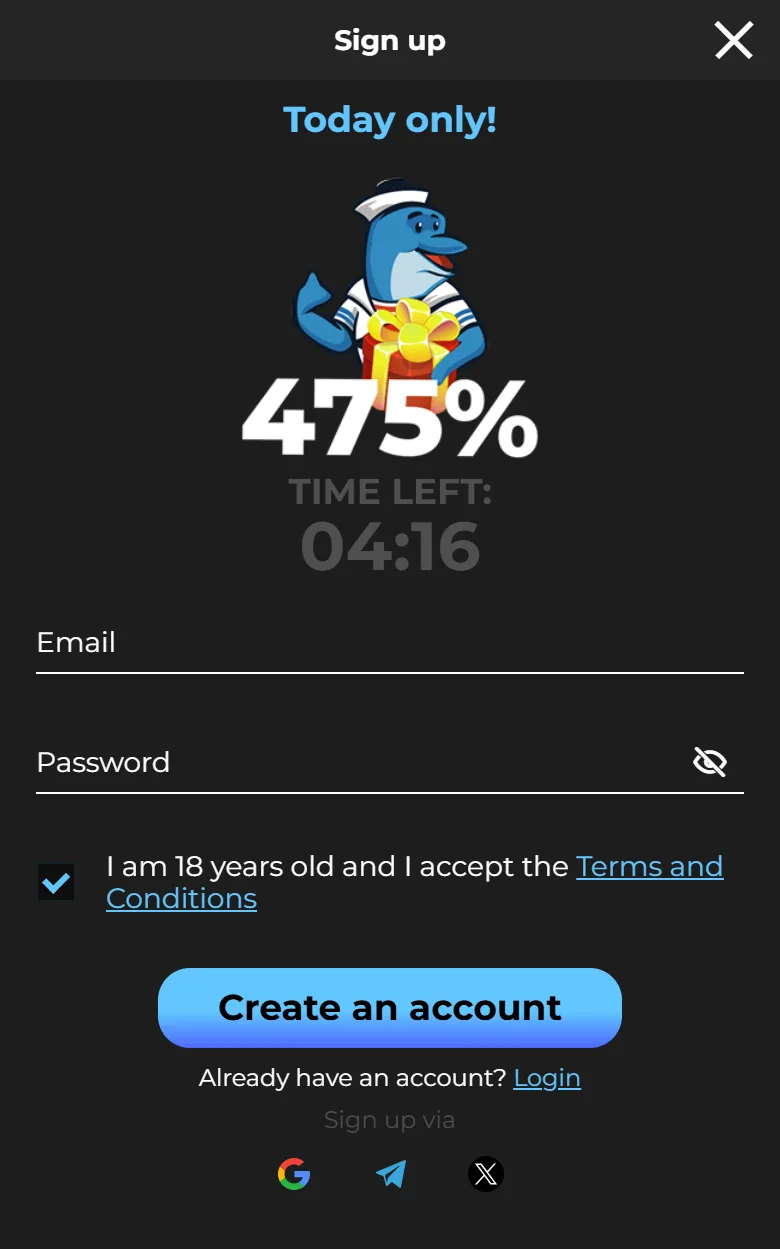
Registration on a phone takes five short steps:
- Tap the blue Sign up button in the top right corner.
- Enter your email.
- Create a password of 6 to 32 characters.
- Check the box "I am 18 years old and I accept the Terms and Conditions".
- Tap Create an account.
You can also sign up in one tap with Google, Telegram or X. Then fill in your profile and confirm your email and phone, otherwise withdrawals stay unavailable. One account is allowed per person and device. The full guide shows how to create a Casigood account.
Logging In and Resetting Your Password
Tap Login in the top right corner to open the Sign in window. Enter your email and password, or use Google, Telegram or X. Forgot the password? Tap Reset under the password field, enter your registration email and follow the instructions in the letter.
From the home screen shortcut, sign-in opens straight away, with no need to search for the site. More tips on how to log in to Casigood are in the sign-in guide.
Safety and Responsible Play on Mobile
A few rules keep mobile play safe:
- The connection is protected with TLS 1.2, payment data is encrypted, and personal data is not passed to third parties unless state authorities request it.
- Open only the official site and never install third-party "Casigood APK" files.
- Play is for adults only: 18+.
- Phone sessions are quick and easy to stretch, so set a budget and take regular breaks.
- Self-exclusion is arranged through support.
- If gambling stops being fun, BeGambleAware and GamCare offer help.
FAQ
Is the Casigood web app free to use?
Yes. There is nothing to buy or download. The shortcut simply opens the site, so the only cost is the mobile data your tariff charges for browsing.
Do I use the same account on mobile and desktop?
Yes. You sign in with the same details everywhere, and your balance and history are shared between devices.
Can I play Casigood on a tablet?
Yes. On iPad, add the site through Safari, and on Android tablets use Chrome. The steps are the same as on a phone.
Does the Casigood mobile site need updates?
No. The shortcut always opens the current version of the site, so updates arrive automatically and there is nothing to install.
Can I play in more than one browser tab?
No. Under the Terms and Conditions you can play in one browser tab only. Close extra tabs before you start a game.
What should I do if a game does not load on my phone?
Check your internet connection, update your browser and reload the page. If the game still does not start, write to support in Online Chat.
Help and Support on Mobile
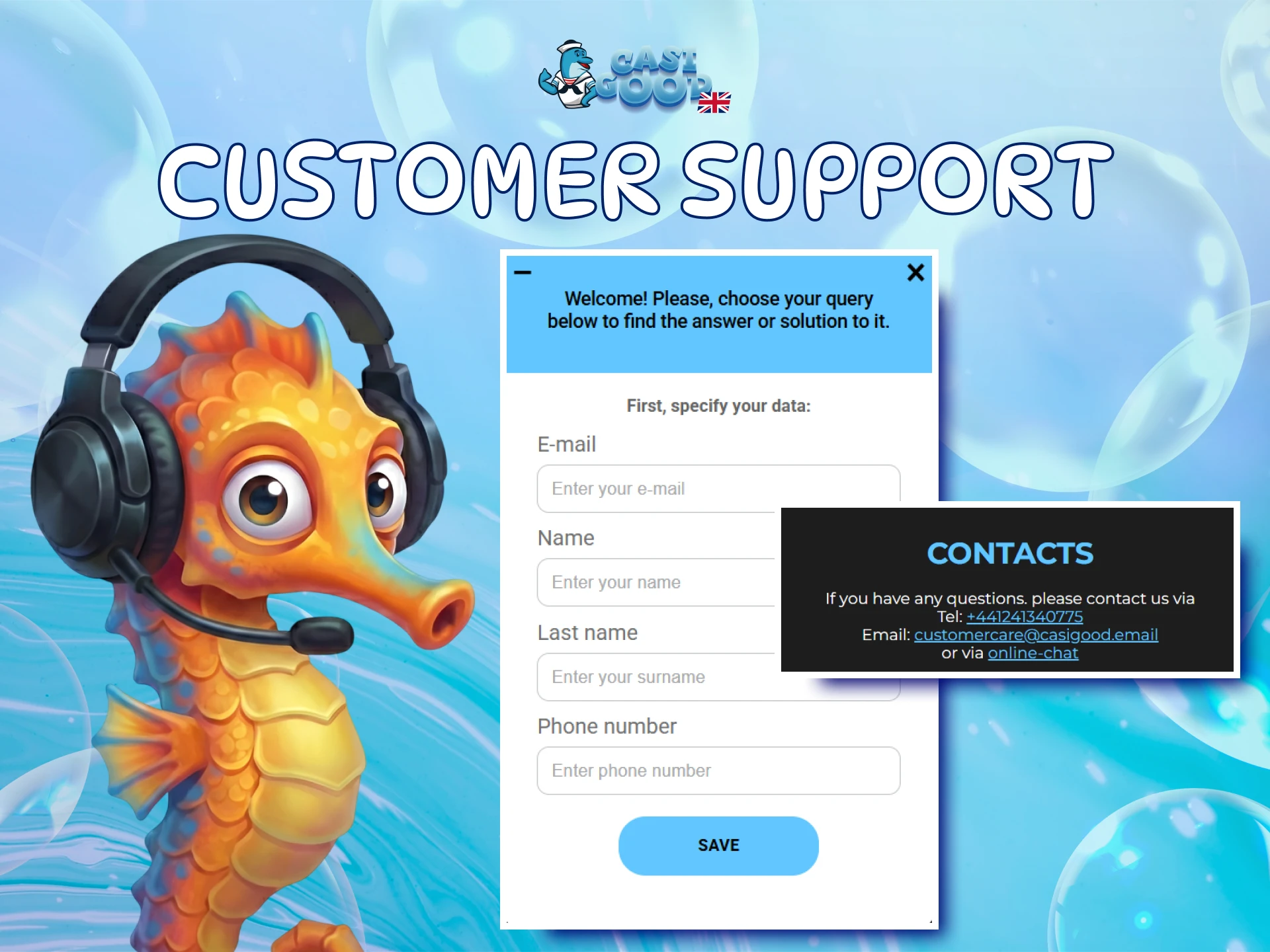
Support is just as easy to reach from your phone:
- Online Chat: the button on the right of every page of the mobile version
- Email: [email protected]
- Phone: +44 1241 340775
Add Casigood to your home screen and open the site straight from the icon next time.
Updated: